Introduction: Why Storage Choice Matters More Than It Looks
Most teams now have a consent banner and a CMP in place. The legal boxes are ticked, the banner shows up, and users can accept or reject cookies. Job done… right? Not quite
Behind the scenes, how you store the consent state and how you pass it to Google Tag Manager and Consent Mode – has a direct impact on:
-
data quality in GA4 and other tools
-
how well conversion modelling works
-
how easy server‑side tagging and back‑end integrations are
-
how often you end up re‑prompting users for consent
In practice, there are two main ways CMPs persist a user’s choice:
-
First‑party cookie
-
localStorage
From the CMP’s perspective, both work. From a measurement perspective, they behave differently, and those differences matter.
This article breaks down:
-
how cookies and localStorage behave in a consent setup
-
how to connect both to GTM and Google Consent Mode with minimal custom code
-
when to choose one or the other, with concrete scenarios
1. First‑Party Cookies vs localStorage: Same Goal, Different Behaviour
Both mechanisms are used to “remember” that a user has accepted, rejected, or customized their consent. But under the hood they work quite differently.
1.1 First‑party cookie – key properties
-
Stored by the browser and sent with every HTTP request to your domain.
-
Has an expiry (e.g. 6 months).
-
Available very early in the page lifecycle (from the very first request).
-
Can be read by:
-
your CMP’s script on the page,
-
GTM (via a first‑party cookie variable),
-
server‑side GTM / backends (from HTTP headers).
-
Implications for consent:
-
Consent state is available as soon as anything runs, which is perfect for Consent Mode defaults and server‑side logic.
-
When users delete cookies, they also delete their consent → the banner will reappear on their next visit.
1.2 localStorage – key properties
-
Stored only in the browser; it never travels with HTTP requests.
-
No built‑in expiry; stored until explicitly cleared (or site data is wiped).
-
Only available once JavaScript executes on the page.
-
Not visible to server‑side GTM or your backend unless you forward it yourself.
Implications for consent:
-
There is always a small timing gap: the page needs to run JS to read localStorage and expose consent.
-
Consent state survives cookie clearing, unless the user clears all site data.
-
Server‑side / back‑end systems can’t see it directly; they must get consent via tags (e.g. GA4 → sGTM) or custom parameters.
1.3 Behaviour when users “clean up” their browser
This is one of the big practical differences:
-
If consent is in a cookie:
-
Clearing cookies = clearing consent.
-
Users will see the banner again more often.
-
-
If consent is in localStorage:
-
Clearing cookies does not clear consent.
-
Users see the banner less often → you get less “consent fatigue” and more stable consent rates
-
There’s no universally “better” option; it’s a trade‑off between UX stability and strict linkage between cookie presence and consent.
2. Implementing Consent with First‑Party Cookies (GTM Example)
There are many valid ways to wire a CMP, GTM and Consent Mode together.
The setup below is one concrete example, using:
-
a CMP that stores consent in a first‑party cookie
-
GTM’s 1st‑party cookie variable to read that state
-
a simple mapping to Google Consent Mode
2.1 Assumptions
For this example, let’s assume:
-
Your CMP writes a cookie called cmp_consent once the user makes a choice.
-
The cookie value looks like this:
cmp_consent=ad_storage=granted|analytics_storage=denied|ad_user_data=denied|ad_personalization=denied
-
“ad_storage” corresponds to: “If set to denied, Google and Microsoft's advertising tags and pixels will not be able to read or write first-party cookies.”
-
“analytics_storage” corresponds to: “If set to denied, Google Analytics tags will not read or write analytics cookies, and data collected to Google Analytics will not utilize persistent cookie identifiers (the identifiers are reset with every page load).”
-
“ad_user_data” corresponds to: “If set to denied, user data cannot be used with Google's advertising solutions for audience building.”
-
“ad_personalization” corresponds to: “If set to denied, data collected on this website will not be used for remarketing in Google's advertising solutions.”
You can adapt names and formats to your own CMP.
As for the sake of an example, we will be using the Simo Ahava Consent mode template to configure consent.
2.2 Step 1 – Let the CMP write the consent cookie
This part is usually handled in the CMP UI or script configuration, not in GTM.
Typical configuration in your CMP:
- Storage method: Cookie / First‑party cookie
- Cookie name: cmp_consent
- When the user saves their preferences:
- If they accept all → ad_storage=granted|analytics_storage=granted|ad_user_data=granted|ad_personalization=granted
- If they reject all → ad_storage=denied|analytics_storage=denied|ad_user_data=denied|ad_personalization=denied
- If they customise → mix of granted/denied
- You don’t have to hardcode this yourself; just make sure you know:
- the cookie name
- the value format
2.3 Step 2 – Expose the cookie to GTM via a 1st‑party cookie variable
Now we make GTM aware of that cookie.
-
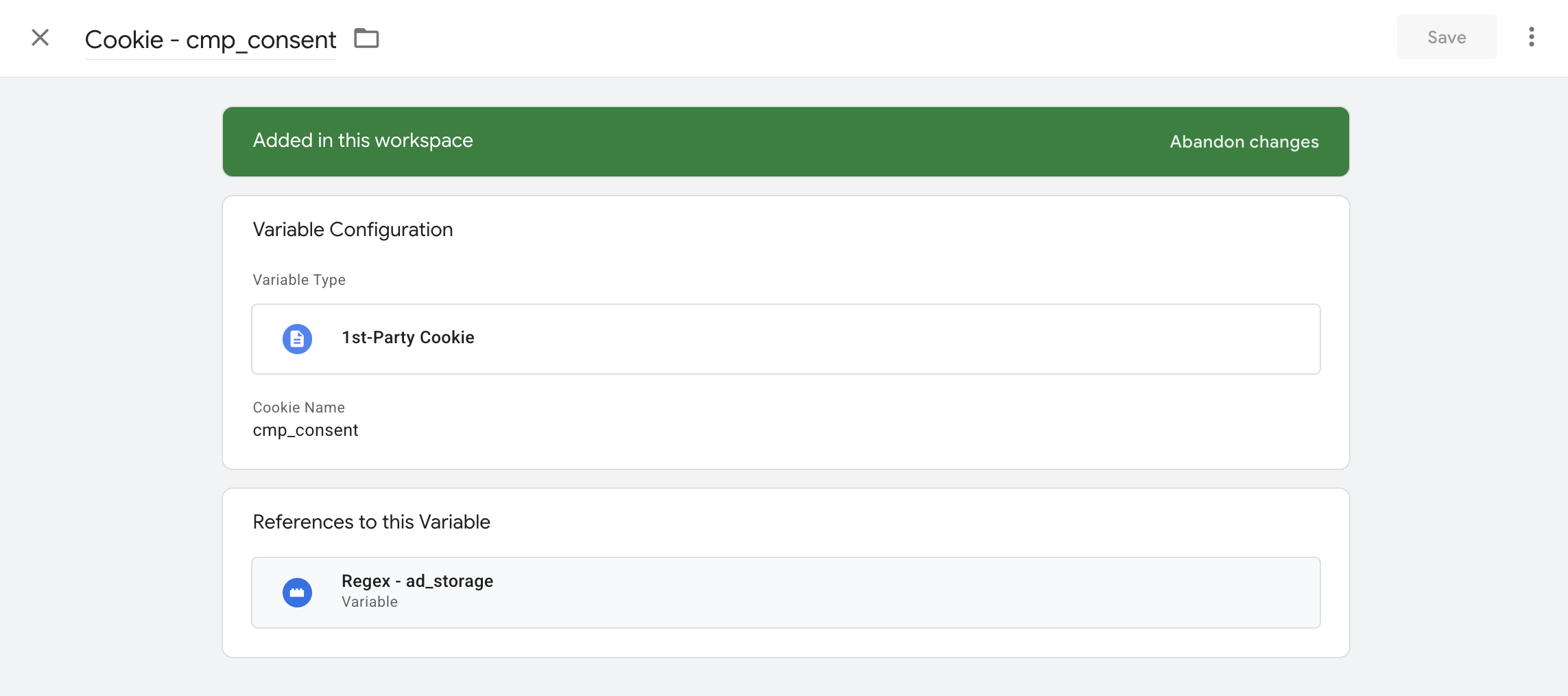
Go to Variables → New
-
Variable type: 1st‑Party Cookie
-
Name it: Cookie – cmp_consent
-
Cookie name: cmp_consent
This variable will now return a string such as:
ad_storage=granted|analytics_storage=granted|ad_user_data=granted|ad_personalization=granted
whenever the cookie exists.
2.4 Step 3 – Extract each consent value with Regex variables
Right now {{Cookie – cmp_consent}} returns a full string, e.g.:
ad_storage=granted|analytics_storage=denied|ad_user_data=denied|ad_personalization=denied
Simo’s Consent Mode template expects four variables, one per consent signal, each returning exactly granted or denied.
A simple way to get there is to use Regex Table variables.
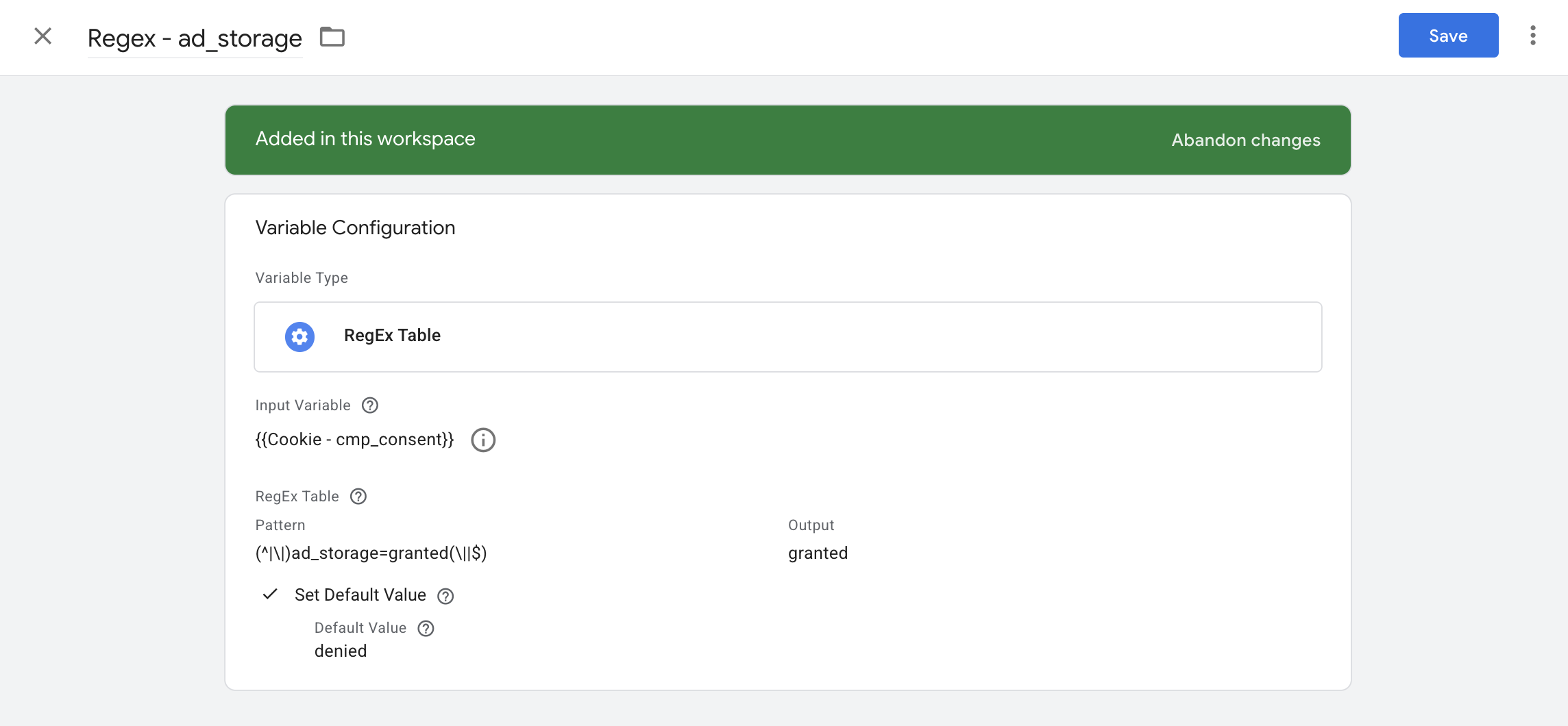
2.4.1 Create Regex – ad_storage
-
Go to Variables → New
-
Type: Regex Table
-
Name: Regex – ad_storage
-
Input variable: {{Cookie – cmp_consent}}
-
For Pattern, fill in “(^|\|)ad_storage=granted(\||$)”
-
As output, fill the table with “granted”
-
As default value, put “denied”
So if the cookie contains ad_storage=granted, this variable returns granted.
If the field is missing or malformed, it falls back to denied.
2.4.2 Create Regex – analytics_storage
Same idea:
-
Variables → New → Regex Table
-
Name: Regex – analytics_storage
-
Input variable: {{Cookie – cmp_consent}}
-
For Pattern, fill in “(^|\|)analytics_storage=granted(\||$)”
-
As output, fill the table with “granted”
- As default value, put “denied”
2.4.3 Create Regex – ad_user_data and Regex – ad_personalization
Repeat for the two V2‑specific signals.
ad_user_data
- Name: Regex – ad_user_data
- Pattern: (^|\|)ad_user_data=granted(\||$) → Output “granted”
- Default: denied
ad_personalization
-
Name: Regex – ad_personalization
-
Pattern: (^|\|)ad_personalization=granted(\||$) → Output “granted”
-
Default: denied
At this point you have four variables:
-
{{Regex – ad_storage}}
-
{{Regex – analytics_storage}}
-
{{Regex – ad_user_data}}
-
{{Regex – ad_personalization}}
Each returns granted or denied, exactly as Simo’s template requires.
2.5 Step 4 – Configure the Simo Ahava Consent Mode tag
Now we plug those variables into the Consent Mode (Google tags) tag template.
2.5.1 Add the template to your container
-
In GTM, go to Templates → Search Gallery
-
Search for “Consent Mode (Google tags)”
-
Add the template by Simo Ahava
You’ll now have a new tag type available.
2.5.2 Create the “default” Consent Mode tag
-
Go to Tags → New
-
Tag type: Consent Mode (Google tags)
-
Name: Consent Mode – default (from cookie)
Configure:
-
Command type: default
-
Region: all
-
ad_storage: {{Regex – ad_storage}}
-
analytics_storage: {{Regex – analytics_storage}}
-
ad_user_data: {{Regex – ad_user_data}}
-
ad_personalization: {{Regex – ad_personalization}}
Leave wait_for_update as you see fit (e.g. 500–1000ms) depending on how your CMP behaves.
4. Trigger: Consent Initialization – All Pages
When this tag fires:
-
It reads the cookie via your Regex variables
-
Sends a default command with the four consent states
-
Ensures that GA4 / Google Ads / other Google tags know the consent status before they run
2.5.3 Optional: “update” Consent Mode tag
Most CMPs also push a dataLayer event once the user saves their preferences, e.g.:
dataLayer.push({
event: 'cmp_consent_updated'
});
If your CMP does not call Consent Mode itself, you can:
-
Create a second tag with the same template: Consent Mode – update (from cookie)
-
Command type: update
-
Use the same four Regex variables (they now read the new cookie value after the user’s choice)
-
Trigger: Custom Event → event name: cmp_consent_updated
This keeps your whole Consent Mode configuration inside GTM and driven by the CMP cookie.
2.6 Practical example: from CMP selection to working Consent Mode
To make this concrete, imagine this flow:
-
User lands on your site for the first time.
-
No cmp_consent cookie.
-
Your Regex variables all fall back to denied.
-
Simo’s default tag fires on Consent Initialization with:
-
ad_storage: denied
-
analytics_storage: denied
-
ad_user_data: denied
-
ad_personalization: denied
-
-
-
GA4 and Google Ads are effectively “frozen” in a privacy‑safe state.
-
User accepts only analytics, rejects advertising.
-
CMP writes: cmp_consent=ad_storage=denied|analytics_storage=granted|ad_user_data=denied|ad_personalisation=denied
-
CMP pushes cmp_consent_updated.
-
Your Consent Mode update tag runs and sends:
-
analytics_storage: granted
-
ad_storage: denied
-
ad_user_data: denied
-
ad_personalization: denied
-
-
-
GA4 is now allowed to collect, Ads remains restricted.
-
On the next pageview, the cookie is still there.
-
The default tag reads the cookie via Regex variables and sets the same states immediately.
-
No custom parsing code needed, and the logic stays readable in the GTM UI.
-
This is just one possible pattern, but it nicely shows how 1st‑party cookies + Regex variables + Simo’s template fit together.
3. Implementing Consent with localStorage (GTM Example)
The same philosophy applies when your CMP stores consent in localStorage instead of a cookie.
Again, this is just one way to do it; the idea is to show how you can:
-
read localStorage via a simple JavaScript variable
-
normalise values via Regex / Lookup variables
-
feed them into the same Consent Mode template
3.1 Assumptions
For this example, let’s assume:
-
Your CMP stores consent in localStorage under the key cmpConsent.
-
The value is a single string, in the same format as the cookie:
ad_storage=granted|analytics_storage=denied|ad_user_data=denied|ad_personalisation=denied
(If your CMP uses JSON, the logic is similar – you’d just adjust the extraction.)
3.2 Step 1 – Ensure the CMP writes to localStorage
In the CMP UI / config:
-
Storage method: localStorage
-
Key: cmpConsent
-
On user choice:
-
Writes the string above (or equivalent) to localStorage.
-
Optionally pushes a cmp_consent_updated event into the dataLayer (same event you used for the cookie example).
-
3.3 Step 2 – Read localStorage in GTM with a JavaScript variable
-
Go to Variables → New
-
Type: Custom JavaScript
-
Name: JS – cmpConsent (localStorage)
-
Code:
function () {
try {
var raw = window.localStorage.getItem('cmpConsent');
return raw || '';
} catch (e) {
return '';
}
}
This variable returns the full string, e.g.:
ad_storage=granted|analytics_storage=denied|ad_user_data=denied|ad_personalisation=denied
whenever the user has previously made a choice.
3.4 Step 3 – Extract each consent value via Regex variables
You can now repeat the same Regex pattern approach, but using the localStorage variable as input.
3.4.1 Regex – ad_storage (LS)
-
Variables → New → Regex Table
-
Name: Regex – ad_storage (LS)
-
Input variable: {{JS – cmpConsent (localStorage)}}
-
For Pattern, fill in “(^|\|)ad_storage=granted(\||$)”
-
As output, fill the table with “granted”
-
As default value, put “denied”
3.4.2 Regex – analytics_storage (LS)
Same pattern:
-
Name: Regex – analytics_storage
-
Pattern: (^|\|)analytics_storage=granted(\||$) → Output “granted”
-
Default: denied
3.4.3 Regex – ad_user_data (LS) and Regex – ad_personalization (LS)
-
Regex – ad_user_data (LS)
-
Pattern: (^|\|)ad_user_data=granted(\||$) → Output “granted”
-
Default: denied
-
-
Regex – ad_personalization (LS)
-
Pattern: (^|\|)ad_personalization=granted(\||$) → Output “granted”
-
Default: denied
-
Again, each variable now returns exactly granted or denied.
3.5 Step 4 – Configure the Consent Mode tag for localStorage
You can either:
-
reuse the same Simo template with a different tag, or
-
reuse the existing tag and swap inputs (if you’re testing one method at a time).
Typical setup:
-
Tags → New
-
Type: Consent Mode (Google tags)
-
Name: Consent Mode – default (from localStorage)
Fields:
-
Command type: default
-
Region: all (or your specific list)
-
ad_storage: {{Regex – ad_storage (LS)}}
-
analytics_storage: {{Regex – analytics_storage (LS)}}
-
ad_user_data: {{Regex – ad_user_data (LS)}}
-
ad_personalization: {{Regex – ad_personalization (LS)}}
Trigger: Consent Initialization – All Pages
If the CMP also triggers cmp_consent_updated when the user changes their mind and writes new localStorage values, you can:
-
Create an update tag using the same four LS‑based Regex variables,
-
Triggered on the same cmp_consent_updated event.
3.6 Practical example: LocalStorage keeping consent stable
Example user journey:
-
Day 1 – first visit:
-
No cmpConsent in localStorage.
-
All LS Regex variables fall back to denied.
-
Simo’s default tag sets all Consent Mode flags to denied.
-
GA4 and Ads behave in “no consent” mode.
-
-
User accepts everything in the CMP:
-
CMP writes:localStorage.cmpConsent = "ad_storage=granted|analytics_storage=granted|ad_user_data=granted|ad_personalisation=granted"
-
CMP pushes cmp_consent_updated.
-
Your update tag sends Consent Mode update with all four signals set to granted.
-
-
Day 10 – user clears cookies, but not site data:
-
The CMP cookie (if you even had one) is gone, but localStorage.cmpConsent still exists.
-
On the next pageview:
-
{{JS – cmpConsent (localStorage)}} returns the stored string.
-
Regex variables return granted for all four consent types.
-
Consent Mode default tag sets everything to granted immediately.
-
-
The user does not see the banner again (if your CMP considers consent still valid), and your measurement remains consistent despite cookie clearing.
Conclusion
Whether your CMP stores consent in a first‑party cookie or in localStorage, the crucial part is how that signal is translated into Google Tag Manager and Consent Mode. First‑party cookies give you early, server‑visible consent that’s easy to reuse in sGTM and back‑end systems, while localStorage prioritises UX stability by surviving most cookie clean‑ups.
The implementations in this article – using GTM cookie variables, JavaScript/localStorage variables, Regex extraction and the Simo Ahava Consent Mode template – are just one way to stitch everything together. They illustrate the key idea: choose a single source of truth for consent, normalise it in GTM, and let Consent Mode enforce it consistently across your tags. Once that foundation is in place, you can adapt the details to your CMP, your legal requirements and your measurement stack.

Sven Bosschem
| LinkedinThis email address is being protected from spambots. You need JavaScript enabled to view it.